Short answer: Korea roaming is the easiest option when keeping your usual number matters, but there is no single “Korea roaming price.” Your home carrier sets the pass price, data allowance and charge trigger. Confirm those rules before departure, then make sure only the intended SIM can use mobile data.
Checked September 3, 2026
Roaming prices and inclusions belong to your home carrier, not a Korean nationwide tariff. Recheck your account immediately before travel, especially the countries covered, high-speed allowance, hotspot rule and what starts a billable day.
Is Korea roaming right for you?
Use home-carrier roaming when the convenience is worth the confirmed total cost. It is especially practical for a short stay, a locked phone, a work trip that requires your normal number, or a traveler who does not want to install another SIM.
| Your situation | Best starting choice | Why |
|---|---|---|
| One- to three-day trip; normal number is essential | Home roaming | No SIM change and familiar support |
| Longer trip; mainly maps and messages | Travel or Korea eSIM | A fixed data plan may cost less than repeated roaming days |
| Home SMS needed, but data pass is expensive | Dual SIM | Keep the home line reachable and use the travel line for data |
| Several people or devices stay together | Pocket WiFi | One connection can be shared, with a battery and return obligation |
Still choosing? Compare device locks, Korean-number needs and group size in the Korea eSIM, SIM and pocket WiFi guide.
Check your roaming plan before flying
Open your carrier account or contact support. Do not rely on an old screenshot or a friend using the same carrier: plan versions, billing regions and account eligibility can differ.
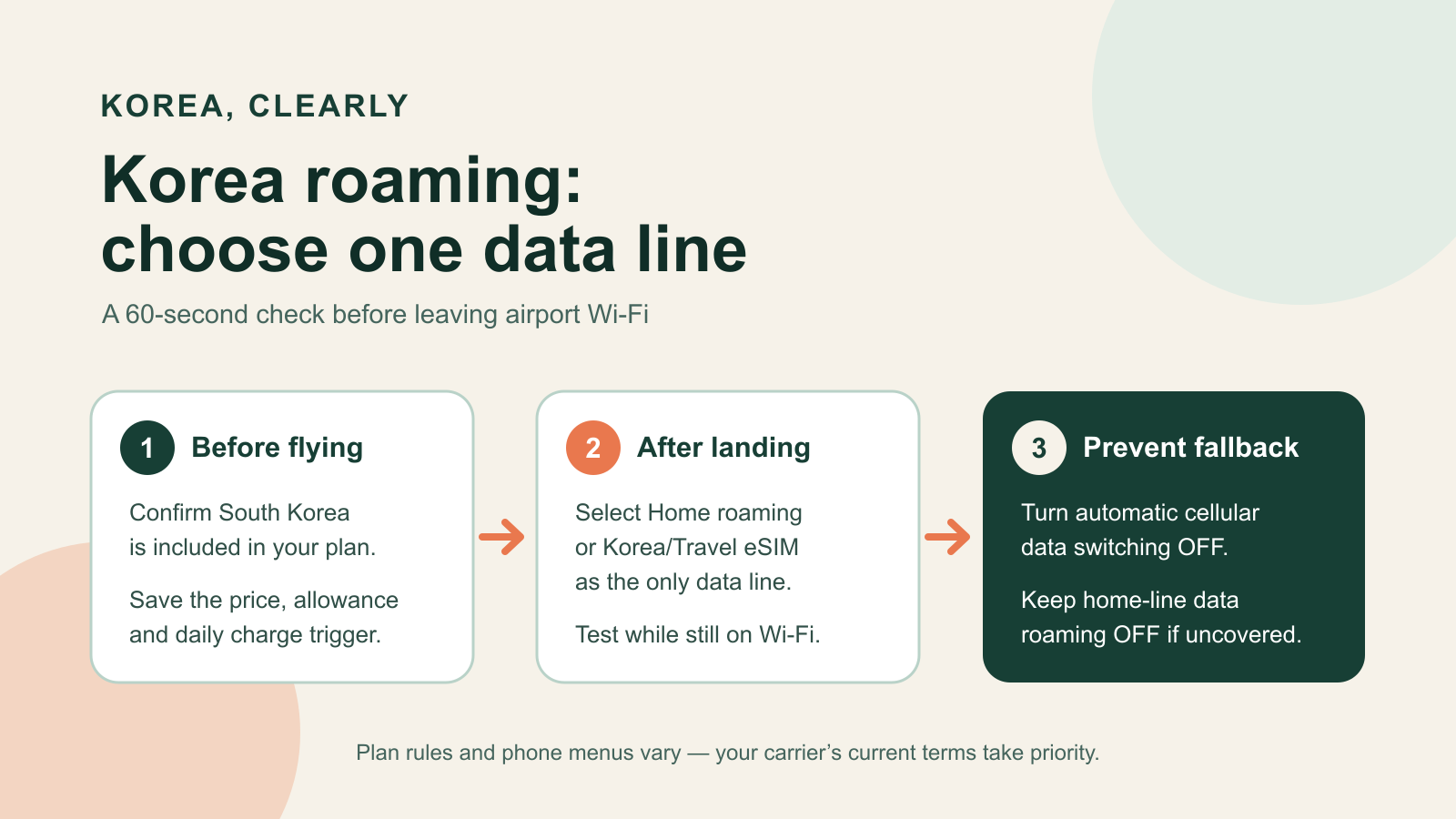
- Confirm South Korea is included. Look for “South Korea” or “Republic of Korea,” not simply “Asia.”
- Identify the charging model. Is it included in your monthly plan, a purchased pass, a daily pass or pay-per-use?
- Ask what activates a day. Mobile data, an outgoing call, an answered incoming call, a sent text or voicemail handling may be treated differently.
- Check the allowance. Record high-speed data, reduced-speed policy, hotspot/tethering access, calls and texts separately.
- Confirm start and end times. A “day” may mean 24 hours from first use or a carrier-defined calendar day.
- Save support access. Download the carrier app, pass terms and international support number for offline use.
Estimate the real trip cost
pass price × possible active days + uncovered calls/texts + taxes or fees
Run the calculation for every day of the trip, not only the days when you expect heavy data use. If the result is uncomfortable, compare a travel eSIM before flying.
Set iPhone or Android for Korea roaming
If roaming is your only line, follow the carrier’s activation instructions and turn Data Roaming on only after the plan is confirmed. If you are using two SIMs, label them “Home” and “Korea” or “Travel” before departure.
iPhone: home roaming only
- Open Settings → Cellular (or Mobile Service).
- Select your home line, open Cellular Data Options, then set Data Roaming as your carrier instructs.
- Open Cellular Data and confirm the home line is selected.
- Check the carrier app after the first connection for a pass-activation message.
iPhone: travel eSIM for data, home line for your number
- Under Settings → Cellular → Cellular Data, select the Korea or travel eSIM.
- Turn Allow Cellular Data Switching off unless your carrier explicitly tells you to use it.
- Open the home line and turn its Data Roaming off.
- Keep the home line on only if you understand possible call, text and voicemail charges.
Apple warns that keeping both lines active can still produce home-line roaming fees even when the travel eSIM is selected for data. The selected data line and the status of each line must be checked separately.
Google Pixel and other Android phones
On a Pixel, start at Settings → Network & internet → SIMs. Choose the SIM used for mobile data, calls and texts. Turn Automatic data switching off when you do not want the phone to fall back to the home line. Samsung and other Android menus use different labels, so search Settings for “SIM manager,” “mobile network” or “roaming” and follow your manufacturer’s current instructions.
Avoid surprise roaming charges in Korea
- Do not test the home line before you know whether a single data session starts a paid day.
- Use Wi-Fi for operating-system updates, cloud photo backup and large downloads.
- Disable app background data or use Low Data Mode/Data Saver if the pass has a small high-speed allowance.
- Check whether hotspot use is included before connecting a laptop.
- Use app-based calls only on the intended data line; ordinary mobile calls follow the home carrier’s roaming rates.
- Ask how unanswered calls and voicemail are handled. Do not assume that leaving a call unanswered prevents every possible charge.
- Take screenshots of the purchased pass, activation confirmation and usage meter.
After landing, stay on airport Wi-Fi while checking the SIM label, selected data line and carrier message. Then load one web page and one map. Before leaving the terminal, save your hotel’s Korean address and use the Incheon Airport to Seoul transport guide.
Fix roaming “No Service” or no data
- Connect to Wi-Fi and confirm the carrier pass is active for South Korea.
- Check that the correct SIM is turned on and selected for mobile data.
- Set date and time automatically.
- Turn Airplane Mode on for about 30 seconds, then turn it off.
- Keep network selection automatic unless your carrier gives a specific Korean partner network.
- Restart the phone and check for a carrier-settings update.
- Contact your home carrier before resetting network settings or deleting an eSIM.
If the phone shows signal but apps cannot load, check whether the data allowance has been exhausted or reduced. If your plan remains unclear or unaffordable, airport carrier counters can provide local SIM, eSIM or pocket WiFi options; verify the exact product and device compatibility before paying.
Korea roaming FAQ
Should I turn Data Roaming on in Korea?
Yes only for the line whose plan requires it and whose charges you have accepted. If a travel eSIM is your data line, keep Data Roaming off on the home line unless the home carrier says otherwise.
Can I receive verification texts on my home number?
Often, but availability and cost depend on your carrier, account and phone setup. Confirm incoming-SMS support and charges. A home number also does not replace a Korean number when a local app requires one.
Does roaming give me a Korean phone number?
No. Home roaming normally keeps your existing number. Choose a Korea SIM or eSIM that explicitly includes a local number if a hotel, restaurant or service needs one.
Official sources
- Apple: using eSIM while traveling internationally
- Apple: cellular data roaming settings and troubleshooting
- Google Pixel Help: dual SIM preferences and automatic data switching
- VisitKorea: mobile communications and airport service counters
Update history: first verified edition prepared September 3, 2026. Your home carrier’s current account terms and your device manufacturer’s current instructions take priority.